
Mac guide · 2026
5K2K on a Mac, set up properly
A 34-inch 5120 x 2160 screen like the Kuycon W34KB gives a Mac more than twice the pixels of a classic ultrawide. To get the most out of them, it is worth understanding how macOS scales the interface, and choosing the right size in two clicks.
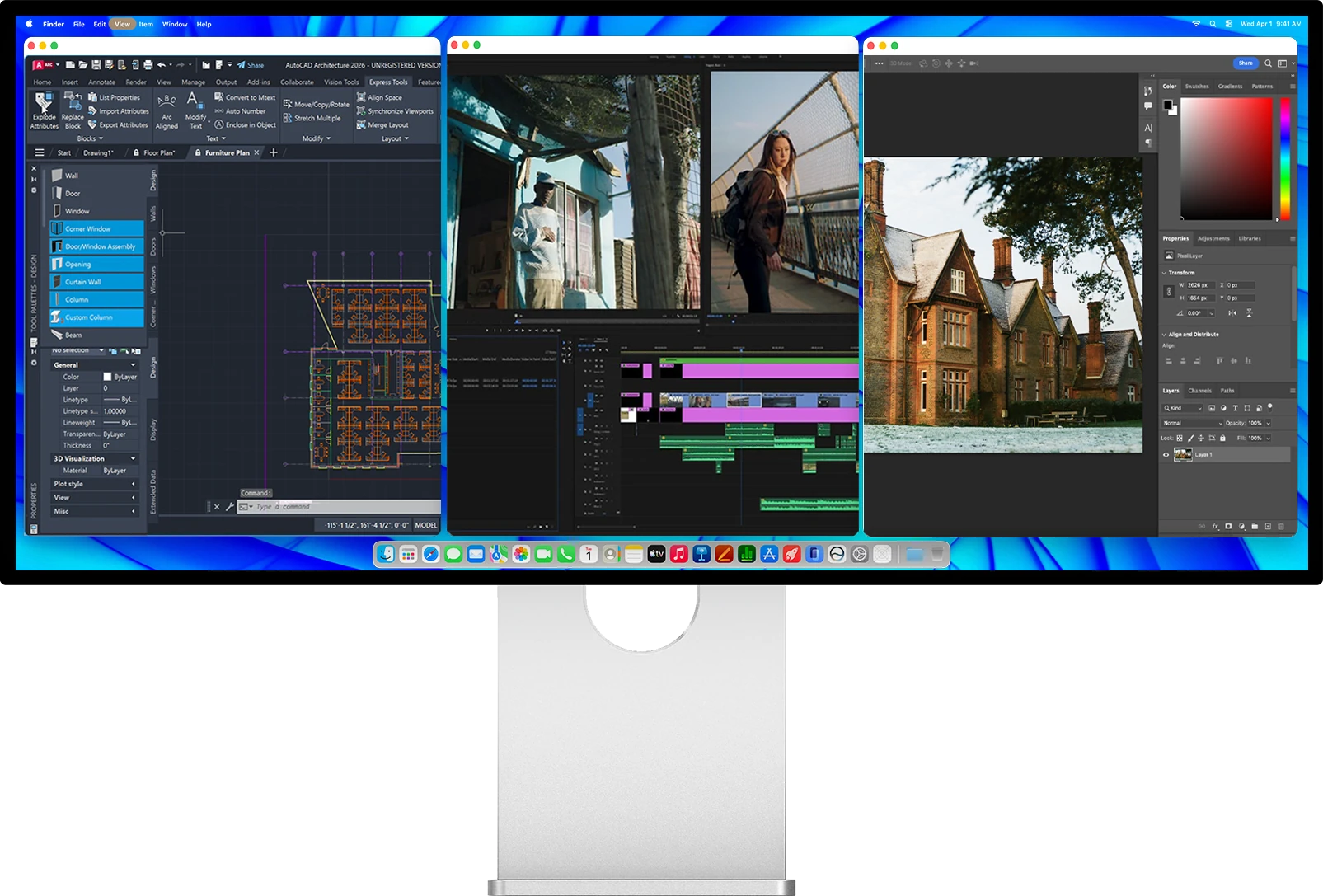
Why 163 ppi is a special case on macOS
macOS draws its interface for two pixel densities. Around 110 pixels per inch, it shows everything at 1x: one interface point equals one pixel. Around 220 pixels per inch, on Retina screens, it shows everything at 2x: each point is drawn with four pixels, which is what makes text look printed.
The W34KB sits at 163 ppi, right between the two. At 1x the text would be too small to read comfortably; at an exact 2x it would be very sharp but very large. The answer is a scaled size, which macOS handles well and which, on a panel this dense, stays crisp.
The three options
What macOS can show on a 5120 x 2160 screen
| Native 1:15120 × 2160 | Exact 2xlooks like 2560 × 1080 | Scaledlooks like about 3440 × 1440 | |
|---|---|---|---|
| Interface size | very small | very large | comfortable |
| Workspace | maximum | that of a 2560 × 1080 screen | that of a 34-inch ultrawide |
| Text sharpness | sharp but tiny | perfect | very sharp |
| Graphics load | low | low | higher |
| Our advice | avoid | if you sit far back or want large text | recommended |
The exact list of sizes on offer varies with your Mac and your version of macOS.
How a scaled size works
When you choose a size such as "looks like 3440 x 1440", macOS draws the whole desktop at twice that size, 6880 x 2880, as it would on a Retina screen, then reduces the image to the 5120 x 2160 of the panel. You get the workspace of a classic 34-inch ultrawide, with text drawn from more than twice as many pixels.
Is the reduction visible? On a 109 ppi screen it would be. At 163 ppi, at normal viewing distance, text stays clean and smooth: this is the same mechanism Apple uses by default on many MacBook screens.
The cost is on the graphics side: the Mac renders a larger image before reducing it. Apple Silicon Macs handle this without difficulty for office work, development, photo and video.
If the size you want is not in the list
macOS chooses the sizes it offers according to the chip, the connection and the version of the system. Entry-level chips can offer a shorter list. If no size suits you, take the nearest one: one step larger or smaller changes little in practice. Third-party utilities such as BetterDisplay can also add intermediate HiDPI sizes.
Refresh rate and brightness
In the same settings panel, the refresh rate menu lists the frequencies your Mac can send to the W34KB; pick the highest on offer. For brightness from the keyboard, the W34KB supports DDC/CI, and our article on MonitorControl explains the setup.
In practice
Set up the W34KB in 4 steps
Connect a single USB-C cable
Plug the cable from the box into the W34KB's upstream USB-C port. It carries the image, the USB data and up to 100 W of charging for a MacBook.
Open System Settings, then Displays
Select the W34KB. macOS shows the "looks like" sizes as a row of thumbnails, from largest text to most space.
Choose a size close to 3440 x 1440
It is the best balance on a 34-inch: the workspace of a classic ultrawide, with Retina-class text. If the interface feels too small, go one size larger.
Set the refresh rate
In the refresh rate menu, choose the highest value offered for your Mac. Keep the panel in its native 5K2K mode: the 360 Hz WFHD mode is designed for PC esports.
FAQ
5K2K ultrawide on a Mac: frequently asked questions
Is text sharp on a 34-inch 5K2K screen with a Mac?
Yes. At 163 ppi, with a scaled size such as "looks like 3440 x 1440", macOS renders the desktop at 6880 x 2880 and reduces it to the panel: text is clearly sharper than on a 34-inch 3440 x 1440 screen at 109 ppi.
Which resolution should I choose on a Mac for the W34KB?
A "looks like" size close to 3440 x 1440. Native 5120 x 2160 makes the interface too small, and exact 2x (2560 x 1080) makes it very large.
Does a scaled resolution slow down the Mac?
It asks more of the graphics chip, because the image is rendered larger before being reduced. Apple Silicon Macs handle it without difficulty for everyday and creative work.
Do I need to install a driver?
No. Any Mac with Apple Silicon recognises the W34KB over USB-C, with video, USB data and up to 100 W of charging on a single cable.
Why doesn't my Mac offer the size I want?
The list of sizes depends on the chip, the connection and the version of macOS. Choose the nearest size, or add intermediate HiDPI sizes with a utility such as BetterDisplay.
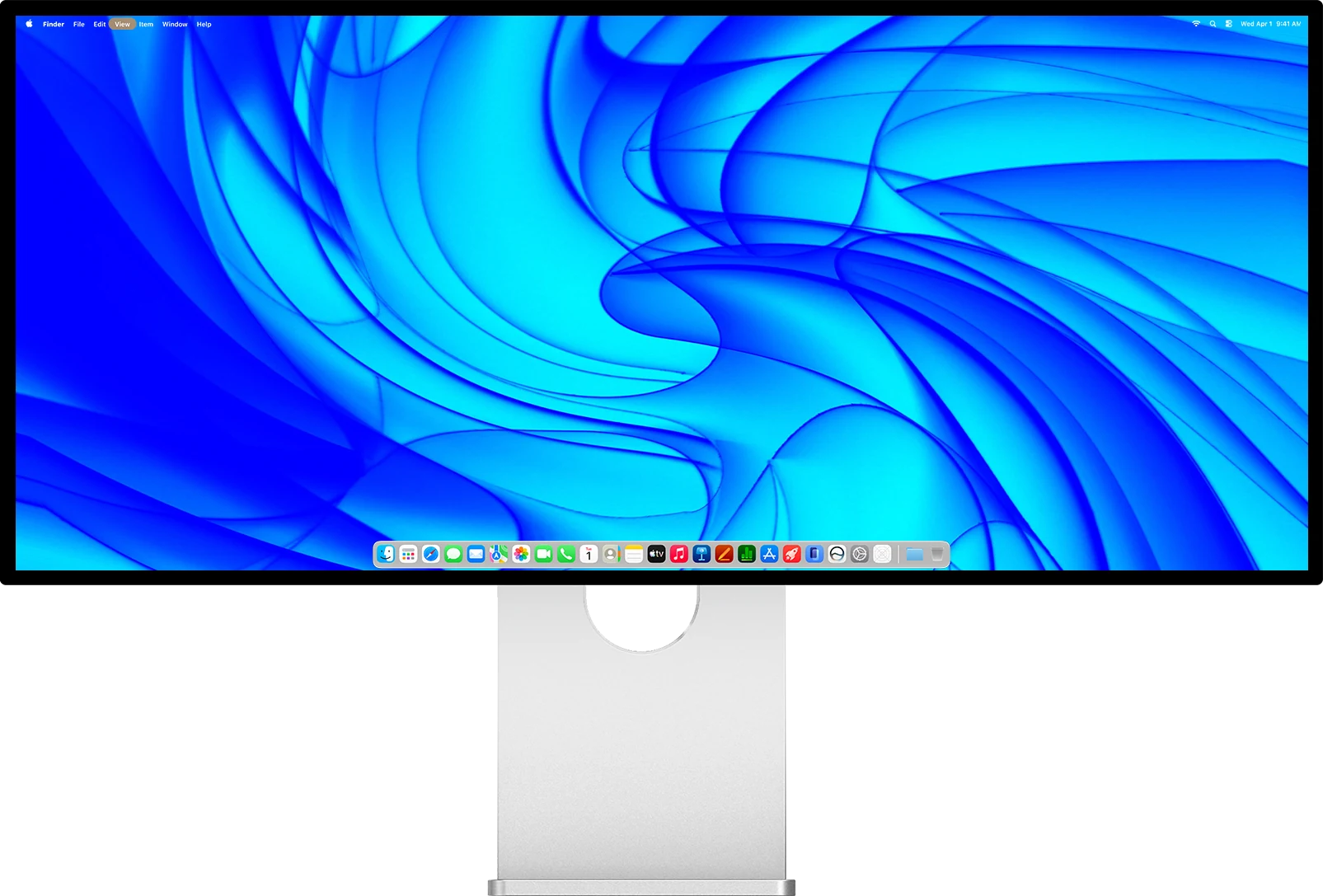
Kuycon W34KB
34-inch 5K2K, 163 ppi, one USB-C cable to your Mac with 100 W of charging. From 1 119,00 €.
See the W34KBGuide written in October 2026. The sizes offered by macOS vary with the Mac model and the version of the system.