
Buying guide · Updated in 2026
The right monitor for a MacBook Pro or a MacBook Air
An Apple Silicon MacBook drives a native 5K or 6K monitor over a single cable — which also carries charging. What remains is choosing the right pixel density: it, not size, decides whether your text will be as crisp as on the laptop's built-in display.
Our selection
Three monitors for a MacBook
From the most affordable to the most spacious, depending on what you do with your laptop once it is on the desk.
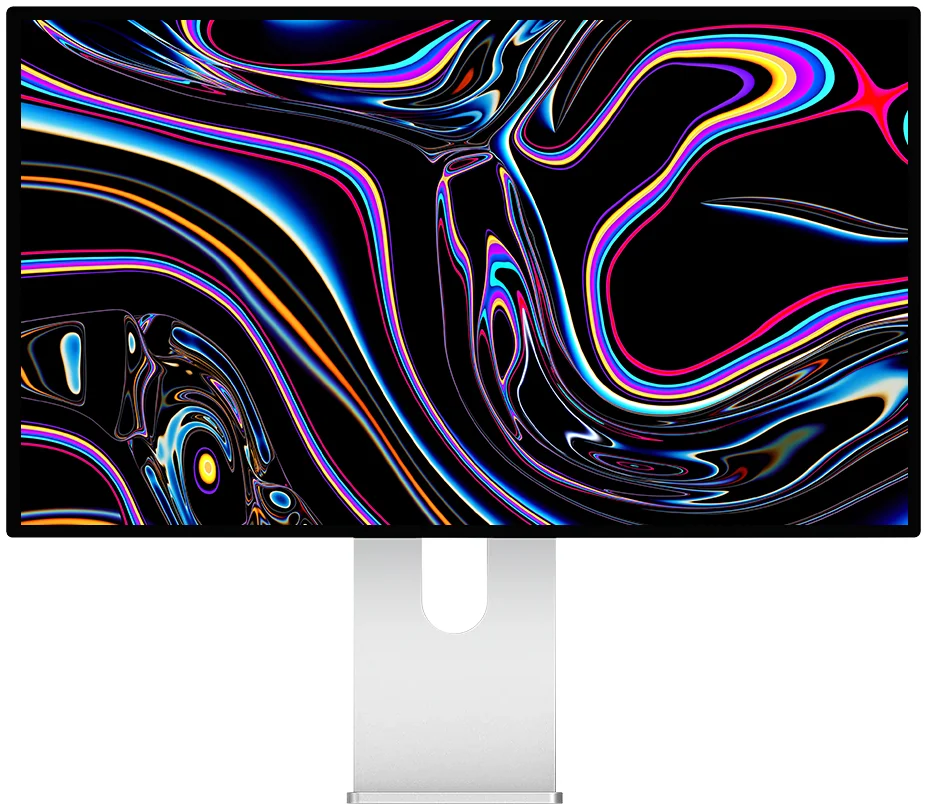
Kuycon G27P
27" · 5K · 218 ppi
From $US1,099.00 incl. VAT
- Resolution5120 × 2880
- Density218 ppi
- PanelIPS Black
- Contrast2000:1
- Brightness600 nits
- USB-C100 W
Why we recommend it: 218 ppi is exactly the density macOS expects to display true Retina. The text is as crisp as on the MacBook's panel, only much larger — and USB-C charges the laptop over the same cable.
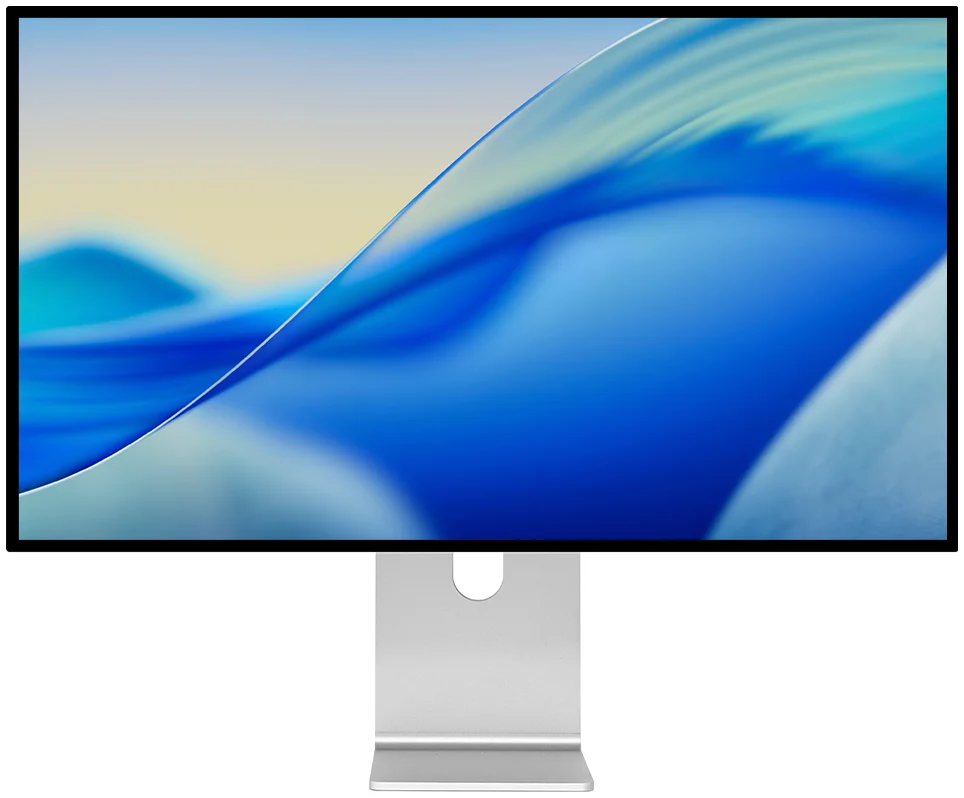
Kuycon G32P
32" · 6K · 223 ppi
From $US1,549.00 incl. VAT
- Resolution6144 × 3456
- Density223 ppi
- PanelIPS Black
- Contrast2000:1
- ConnectivityDP 2.1, 2 × HDMI 2.1
- USB-C100 W
Why we recommend it: the same Retina density as the G27P, but across 32 inches: you gain a third more workspace without losing an ounce of sharpness. The right choice if you work with two windows side by side all day.
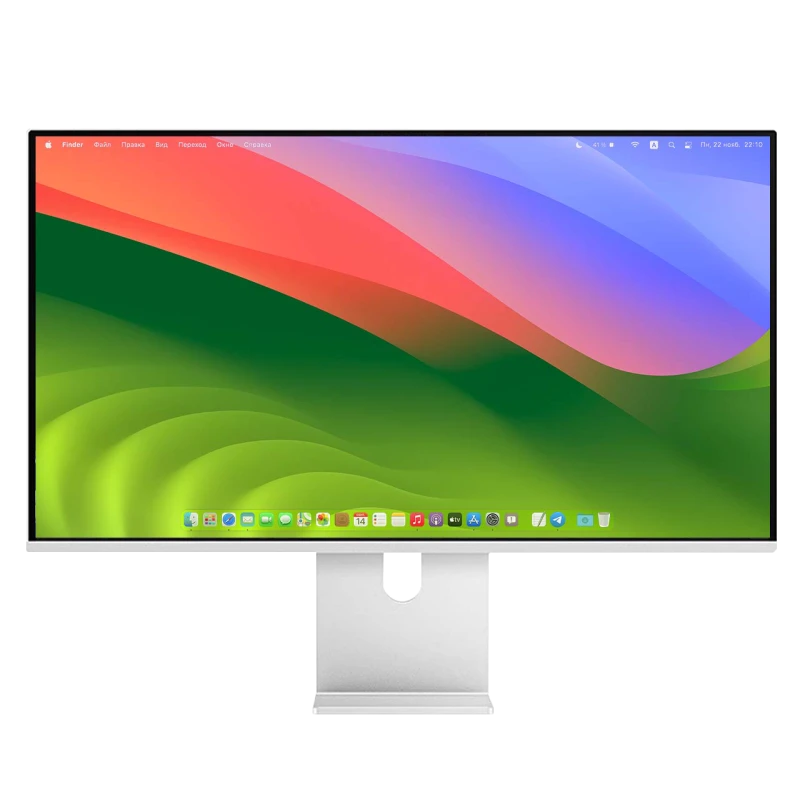
Kuycon P27L
27" · 4K · matte
From $US582.48 incl. VAT
- Resolution3840 × 2160
- Density163 ppi
- PanelIPS
- Brightness400 nits
- Finishmatte
- USB-Cyes
Why we recommend it: the entry ticket to a large USB-C monitor on a MacBook Air, under €500. At 163 ppi, the text is less crisp than in 5K — we explain why below — but the matte finish makes it an excellent monitor for a very bright desk.
The decisive point
Why density counts more than size
It is the only concept to understand before buying a monitor for a Mac.
macOS is designed around a density of about 220 pixels per inch. At that density, the system draws every interface element on exactly four physical pixels: that is what Apple calls Retina, and that is what gives fonts their characteristic crispness.
A monitor that departs from that density forces macOS into an intermediate calculation. The result stays very acceptable, but the thin strokes of characters fall between two physical pixels: the text looks slightly softened, and fatigue sets in after a few hours of reading.
| Monitor | Resolution | Density | Rendering under macOS |
|---|---|---|---|
| MacBook Pro 14" / 16" | 3024 × 1964 / 3456 × 2234 | 254 ppi | Native Retina |
| Kuycon G27P / P27Z — 27" 5K | 5120 × 2880 | 218 ppi | Native Retina, 2× scaling |
| Kuycon G32P — 32" 6K | 6144 × 3456 | 223 ppi | Native Retina, 2× scaling |
| Kuycon P27L / P27D — 27" 4K | 3840 × 2160 | 163 ppi | Non-native scaling |
| Kuycon P32K / P32T — 32" 4K | 3840 × 2160 | 139 ppi | Comfortable without scaling |
The 32" 4K is the only format that reads correctly at 100%, with no scaling: the elements are simply larger.
One cable, genuinely
This is the most concrete argument for a laptop. A USB-C cable between the MacBook and the monitor carries the picture at native resolution, the peripherals plugged into the monitor, and up to 100 W of charging. You arrive at the desk, you plug in one connector, everything is connected.
A nuance about charging: 100 W comfortably covers a MacBook Air and a 14-inch MacBook Pro. On a 16-inch MacBook Pro, whose original charger delivers more, charging will be slower when the machine is working flat out — the computer will not run down in everyday use.
Working with the lid closed
Closed-lid mode turns the laptop into a tower set to one side. Three conditions, and they are all simple: the MacBook must be powered — which the monitor's USB-C does —, an external keyboard and mouse must be connected, and the external monitor must be active before you close the lid.
If the Mac falls asleep when you close the display, it is usually because charging is not detected. The full procedure is in our connecting and troubleshooting guide.
Glossy or matte, for a laptop?
A MacBook's panel is glossy. Placing a matte monitor next to it creates a slight mismatch in rendering: colours look a little less saturated on the external monitor. If you often work with both displays on, a model with a glossy anti-reflective finish like the G27P or the G32P pairs better with the laptop.
Conversely, if your desk faces a window, or if you work with the lid closed most of the time, the matte finish of the P27L or the P40K settles reflections once and for all.
And the stand?
One point to know before ordering: Kuycon monitors come with a VESA 100 × 100 adapter and their cables, but the adjustable stand is chosen separately — either in a monitor + stand pack, or on its own. That is what lets anyone who already owns a desk arm avoid paying for a stand they have no use for. We detail the options in the stands and mounts guide.
FAQ
Monitor for a MacBook: frequently asked questions
Which monitor should you choose for a MacBook Pro?
A 27-inch 5K like the G27P if you mainly work on text, code or design: its 218 ppi match the Retina density macOS expects. A 32-inch 6K like the G32P if you need more space without losing sharpness.
Can a MacBook Air drive a 5K monitor?
Yes. Apple Silicon MacBook Air models support an external 5K monitor through their Thunderbolt / USB-C port, with automatic HiDPI scaling. The number of external monitors supported simultaneously varies by chip generation: check that on your model's spec sheet if you plan to connect two.
Does the monitor's cable charge the MacBook?
Yes, up to 100 W on models fitted with USB-C: picture, data and power go through the same cable. That is ample for a MacBook Air or a 14-inch MacBook Pro; on a 16-inch under a full workload, charging will simply be slower.
Is a 4K monitor enough for a MacBook?
It works perfectly, but text rendering is not the same. On 27 inches, a 4K panel displays 163 ppi: macOS applies non-native scaling and characters look slightly softened. On 32 inches, the 4K panel drops to 139 ppi and becomes, on the contrary, comfortable to read with no scaling at all.
Is the stand supplied with the monitor?
The monitor comes with its VESA 100 × 100 adapter and its cables. The height-adjustable stand is ordered either in a monitor + stand pack or separately, which avoids paying for it if you already use a desk arm.
One cable between your MacBook and true Retina
Delivery and after-sales service in Europe, 2-year warranty in the European Union. From 4K under €500 to 32-inch 6K, choose the density that matches how you work.
See all Kuycon monitorsGuide written in August 2026. The specifications are those published by the manufacturer at that date and are subject to change; check the product page before buying. Kuycon prices are shown in your currency.