
Buying guide · Updated 2026
Yes, a Kuycon monitor works perfectly on a PC
The reputation of Kuycon monitors was built around the Mac. They are, however, standard displays: they connect over DisplayPort, HDMI or USB-C, and require no driver under Windows. This guide explains what actually changes on the PC side — scaling, the bandwidth of your graphics card, and the choice of cable.
What does not change
A Kuycon monitor is in no way a proprietary accessory. There is no driver to download, no software to install, no account to create. You plug in the cable, Windows detects the native resolution, and the image appears. The models in the range are stated to be compatible with Windows, macOS and Linux, as well as with PlayStation, Xbox and Nintendo Switch consoles.
Two features sometimes associated with the Apple world work just as well on a PC: USB-C charging, which powers a laptop with up to 100 W over the video cable, and the DDC/CI protocol, which lets you set brightness from the keyboard rather than with the buttons on the monitor. Under Windows, free utilities such as Monitorian or Twinkle Tray handle this; the procedure is detailed on our page brightness control over DDC/CI.
The real subject
Scaling under Windows
This is the only fundamental difference from a Mac — and the first thing to set after unboxing.
On a very high-density panel, text shown at 100 % becomes tiny. macOS applies scaling automatically; Windows leaves it to you, and defaults to a percentage that is not always the best one. The setting is found under Settings › System › Display › Scale.
The rule: favour a whole percentage, 100 % or 200 %, rather than the intermediate values. At 200 %, each interface pixel occupies exactly four physical pixels, with no interpolation at all: the result is perfectly sharp. Values such as 125 % or 150 % force Windows to recalculate edges, which remains very good on modern applications but can slightly soften some older software.
| Model | Resolutionnative | Density | Recommended scaleWindows | Workspaceobtained |
|---|---|---|---|---|
| G27P / G27X SE / P27Z | 5120 × 2880 | 218 ppi | 200 % | 2560 × 1440 |
| G32P | 6144 × 3456 | 223 ppi | 200 % | 3072 × 1728 |
| G32X | 6016 × 3384 | 218 ppi | 200 % | 3008 × 1692 |
| P27D | 3840 × 2160 | 163 ppi | 150 % | 2560 × 1440 |
| P32K / Q32S | 3840 × 2160 | 139 ppi | 125 à 150 % | 3072 × 1728 à 2560 × 1440 |
| P40K | 5120 × 2160 | 139 ppi | 125 à 150 % | 4096 × 1728 à 3413 × 1440 |
| Q34W | 3440 × 1440 | 109 ppi | 100 % | 3440 × 1440 |
Theoretical workspace obtained at the stated scale. Adjust according to your viewing distance.
Compatibility
What your graphics card must provide
A 5K or 6K panel demands a lot of bandwidth. Check this point before ordering, not after.
Displaying 5120 × 2880 at 60 Hz requires around 17 Gbit/s, and a 6K panel more still. Three routes get you there:
- DisplayPort 1.4 with DSC compression — the most widespread solution. The compression is visually lossless and handled by the graphics card. All NVIDIA GeForce RTX and AMD Radeon RX 6000 cards and later support it.
- DisplayPort 2.1 UHBR20 — the fastest standard available today; this is what the P27Z uses to reach 180 Hz in native 5K.
- HDMI 2.1 — enough for 5K at 60 Hz. Note: the P40K and Q34W models have HDMI 2.0, whose bandwidth is far lower. On these two monitors, full resolution at full refresh rate must go over DisplayPort or USB-C.
The point to watch mainly concerns older graphics cards and entry-level laptops. A card without DSC will cap at 4K, or show your 5K monitor at 30 Hz — an unmistakable symptom, with a mouse pointer that seems to jump from one spot to the next.
USB-C on a Windows laptop
A single cable for image, data and up to 100 W of charging: this is the most concrete argument for a USB-C monitor, and it is in no way reserved for MacBooks. One condition: the USB-C port on your PC must support DisplayPort Alt Mode. Not every USB-C port carries video — some handle data and charging only.
How can you check? Look for the small DisplayPort logo (a stylised D) or the Thunderbolt lightning bolt next to the port. A Thunderbolt 3 or 4 port always carries video. If in doubt, the specification sheet from your PC manufacturer settles it in seconds.
Selection
Which model for which use on a PC
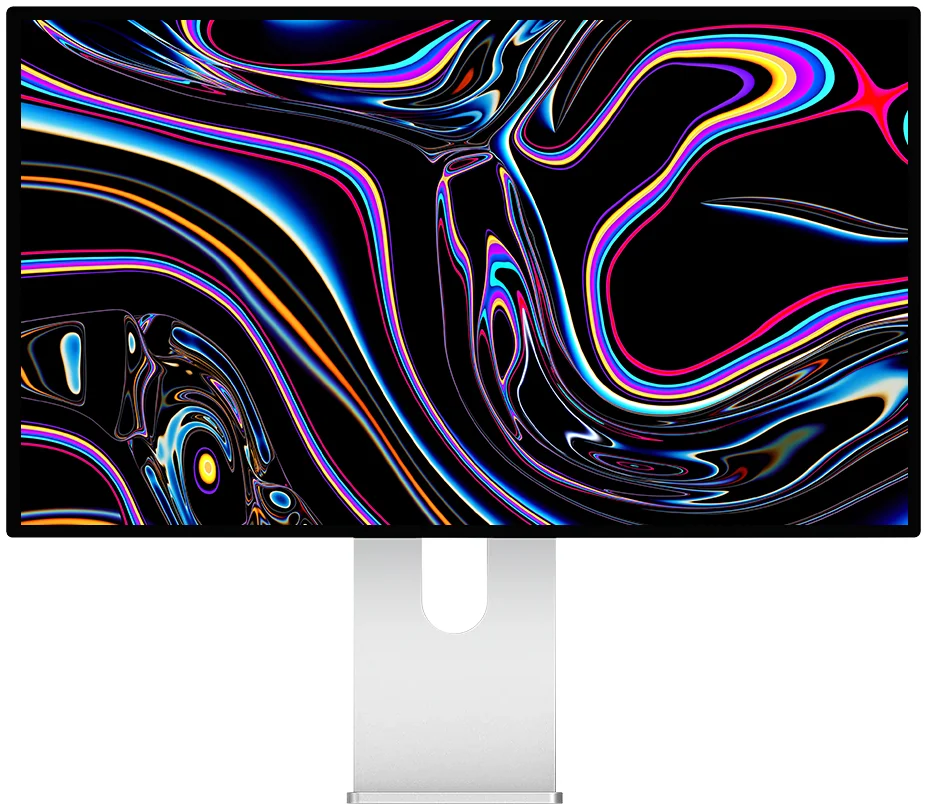
Kuycon G27P
Office work & development
From $US1,099.00 incl. VAT
For anyone who spends their days in text, code or spreadsheets. At 200 %, font rendering is the sharpest a 27-inch monitor can produce, and the 2000:1 IPS Black panel eases the eyes at the end of the day.
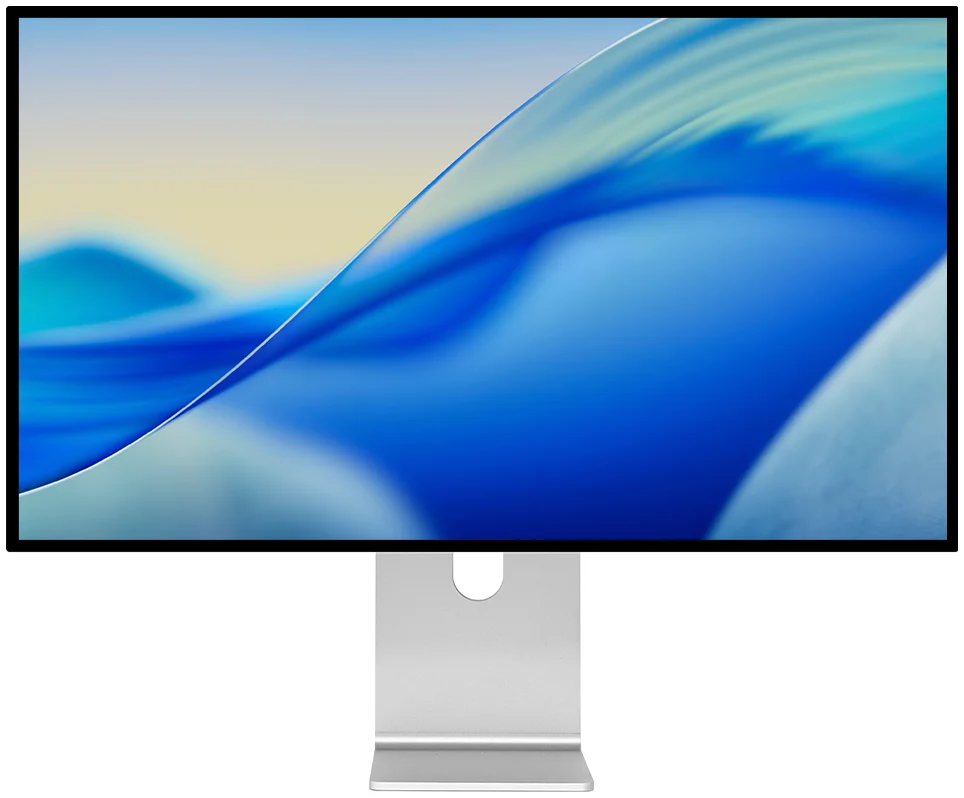
Kuycon G32P
Creative work & editing
From $US1,549.00 incl. VAT
32 inches in 6144 × 3456: a whole video timeline, or an image at full resolution with the palettes around it. IPS Black panel at 2000:1 and 500 nits.
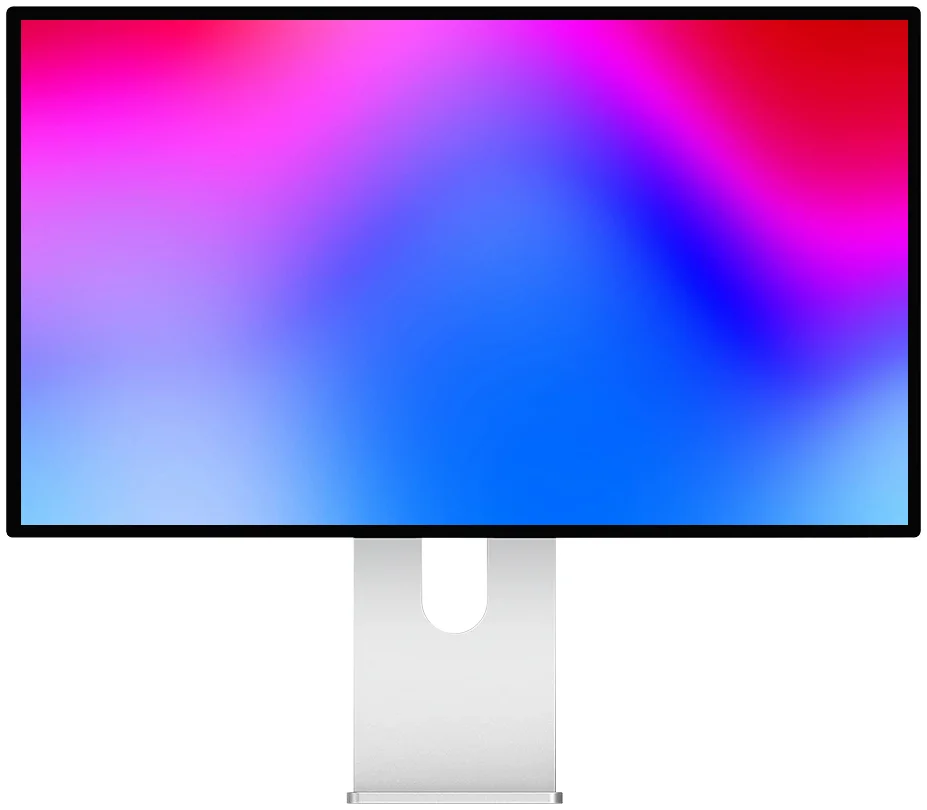
Kuycon P27Z
Work by day, gaming by night
From $US1,249.00 incl. VAT
5K at 180 Hz, then 330 Hz in QHD for competitive games. Its DisplayPort 2.1 UHBR20 is the fastest connection in the range.
FAQ
Kuycon on a PC: frequently asked questions
Are Kuycon monitors Mac-only?
No. They are standard monitors, with no driver or proprietary software, compatible with Windows, Linux and consoles. They are often presented as alternatives to Apple displays because they offer the 5K and 6K resolutions few manufacturers provide, but nothing about how they work is specific to macOS.
Which scaling should I choose under Windows for a 27-inch 5K monitor?
200 %. You get the workspace of a 2560 × 1440 display, drawn with four times as many pixels, with no interpolation at all. It is the setting that gives the sharpest text. The option is found under Settings › System › Display › Scale.
Which graphics card do I need for a 5K or 6K monitor?
A card that handles DSC compression over DisplayPort 1.4, which is the case for all NVIDIA GeForce RTX and AMD Radeon RX 6000 cards and later. Without DSC, the display will cap at 4K or drop to 30 Hz. To game in 5K you also need a powerful card: 5120 × 2880 is close to twice the pixels of 4K.
Can a Windows laptop be charged through the monitor cable?
Yes, up to 100 W on models fitted with USB-C, provided the laptop's USB-C port supports DisplayPort Alt Mode. Look for the DisplayPort logo or the Thunderbolt lightning bolt next to the port: some USB-C ports carry data and power only.
Can brightness be set from the keyboard under Windows?
Yes. Kuycon monitors support the DDC/CI protocol. Free utilities such as Monitorian or Twinkle Tray let you control brightness, contrast and colour temperature from Windows, without touching the buttons on the monitor.
A 5K monitor on your PC?
Same resolution, same density, same standard connectivity — with no driver and no imposed ecosystem. Delivery and after-sales service in Europe, with a 2-year warranty in the European Union.
See every Kuycon monitorGuide written in August 2026. Specifications are those published by the manufacturer at that date and are subject to change; check the product page before purchase. Kuycon prices are shown in your currency.